
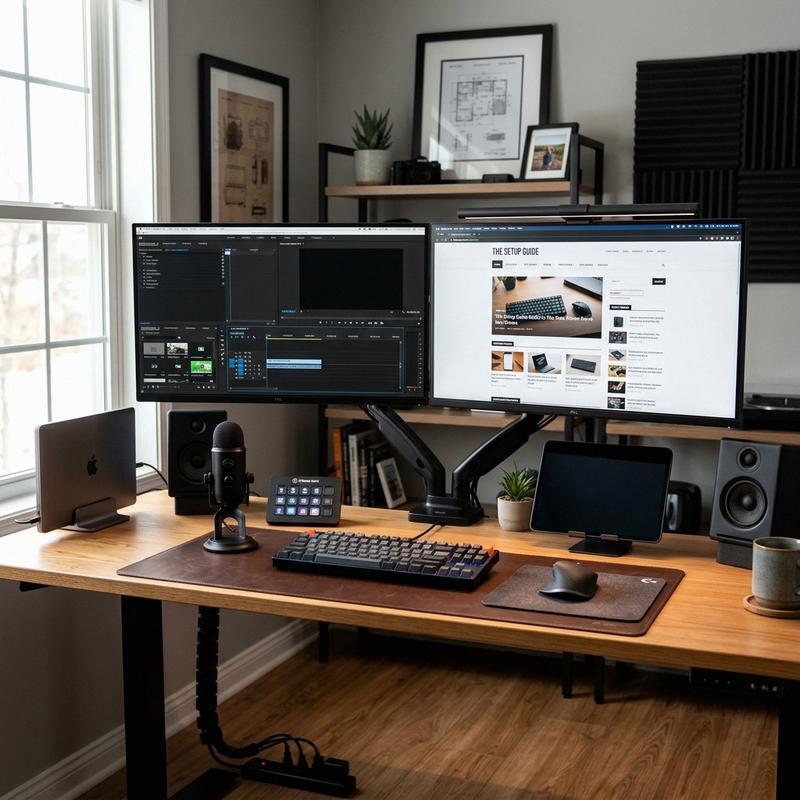
In our modern era of complex digital workflows, data analysis, and creative content production, screen space has become a critical productivity metric. For professionals managing multiple applications, spreadsheets, and video feeds, a single laptop screen or small monitor is no longer sufficient. Exploring a Dual Monitor and Tech Setup represents the perfect opportunity to combine clean desk design, high-performance technology, and ergonomic health. By mounting two screens side-by-side or stacked, you can expand your digital workspace, reduce tab switching, and work faster and more comfortably. In this comprehensive guide, we will explore the technical setup of dual monitors and detail five layout tips to design a clean, high-performance workspace.
The Technical Architecture of Dual Monitor Setups
Setting up dual monitors involves more than just plugging in cables. To ensure a smooth, high-quality display, you must understand refresh rates, screen resolution, panel technology, and connection standards. When selecting monitors, match their resolutions (such as dual 4K or dual 1440p) and panel types (preferably IPS panels for wide viewing angles and color accuracy). Mixing different sizes and resolutions can cause window resizing issues and eye strain as your eyes adapt to different screen densities.
The connection standard is critical for clean cable setup. Modern setups utilize USB-C or Thunderbolt 4 cables, which can carry video, data, and power over a single connection. Thunderbolt 4 supports “Daisy Chaining,” allowing you to connect one monitor to another, and then connect the first monitor to your computer with a single cable. This reduces cable clutter on your desk, keeping your workspace clean and organized.
Additionally, you must select the right docking station. A Thunderbolt 4 docking station serves as the central hub for all your technology, connecting your dual screens, keyboard, mouse, webcams, and hard drives to your laptop. It also provides power to charge your laptop, allowing you to connect or disconnect your entire desk setup with a single plug, making your daily routine fast and easy.
5 Tech Setup Tips for Creators and Professionals
1. Gas-Spring Dual Monitor Arms and Mounting Configurations
To keep your desk clean and adjust your screens easily, use a high-quality gas-spring monitor arm. Standard monitor stands are bulky, take up valuable desk space, and offer limited height adjustments. A gas-spring arm clamps to the back of your desk, holding your screens securely and allowing you to adjust their height, depth, and angle with a light touch.
The Ergotron LX Dual Direct Monitor Arm is a premium aluminum mount that provides smooth, effortless movement and holds two screens side-by-side. If you have limited desk width, choose the Vivo Dual LCD Monitor Desk Mount for a stacked configuration, where one monitor sits directly above the other. This stacked setup is ideal for coding or editing, as it keeps both screens in your vertical line of sight and prevents neck strain from turning side-to-side.
2. Thunderbolt 4/USB-C Universal Docking Stations
A high-performance docking station is the heart of a clean tech setup. It allows you to run dual 4K monitors at sixty hertz, connect high-speed hard drives, and plug in your internet cable, while charging your laptop at the same time. This eliminates the need to plug multiple cables directly into your laptop, preventing port wear and cable clutter.
The CalDigit TS4 Thunderbolt 4 Station is widely considered the best docking station available, offering eighteen ports, ninety-eight watts of laptop charging power, and support for dual displays. Place the docking station under your desk or hide it behind a monitor to keep the desktop clear of cables. Use short cables to connect your monitors directly to the dock, keeping the wires hidden out of sight.
3. Under-Desk Cable Management Trays and Spine Organizers
A clean tech setup requires excellent cable management. Having messy cords hanging under your desk looks unprofessional and accumulates dust. To manage your cables, install a wide metal wire management tray underneath your desktop, and mount your power strips and power adapters inside the tray.
The Uplift Desk Cable Management Tray is a spacious steel wire basket that screws under the desk, holding all power cords out of sight. Pair it with a flexible cable spine organizer to route wires down to the wall outlet in a clean, bundled sleeve. Use hook-and-loop wraps to bundle cables together, and mount cables flat against the desk underside, keeping the space clean.
4. Premium Mechanical Keyboards, Wireless Mice, and Desk Mats
Your keyboard and mouse are your primary tools, and choosing high-quality models improves both typing comfort and desk style. A wireless mechanical keyboard offers a satisfying typing feel and removes cord clutter, while an ergonomic wireless mouse prevents wrist strain during long hours of work.
The Keychron Q1 Pro Mechanical Keyboard is a premium wireless keyboard with a solid aluminum body and custom switches that feel great to type on. Pair it with the Logitech MX Master 3S Mouse, known for its comfortable ergonomic shape and precise tracking. Lay these tools on a large felt or leather desk mat, like the Grovemade Wool Felt Desk Pad, to protect your desk surface and add warmth.
5. Desk Shelves, Riser Podiums, and Tech Trays
A desk shelf or monitor riser podium is an excellent addition to a dual monitor setup. It raises your monitors to eye level and creates a shelf space underneath to store your keyboard, laptop, and notebook when you are not working, keeping your desktop clean and organized.
The Grovemade Wood Desk Shelf is a beautiful, premium riser made from solid walnut and natural cork. It features integrated storage dividers to organize your tablet, hard drives, and desk accessories. By utilizing the vertical space on your desk, a desk shelf helps you keep your daily tools organized and within arm’s reach, creating a clean, productive workspace.
Comparison: Side-by-Side vs. Stacked Monitor Configurations
| Setup Feature | Side-by-Side Monitor Configuration | Stacked Monitor Configuration |
|---|---|---|
| Desk Width Required | High (requires a desk width of at least 60 inches) | Low (only needs width for one screen) |
| Ergonomic Movement | Horizontal eye and neck movement (side-to-side) | Vertical eye and neck movement (up-and-down) |
| Best Suited For | Video editing, timelines, and multi-tasking | Coding, writing, and long document reviews |
| Screen Focus | Allows one primary center screen and one side screen | Keeps both screens centered in your visual field |
A Step-by-Step Guide to Desk Cable Management
To manage your desk cables like a professional, follow this simple four-step process. First, clear everything off your desk and mount your monitor arm and monitors securely. Place your docking station and power strips under the desk or on a shelf. Second, run the power cables from your monitors down the monitor arm frame, using the built-in cable clips to keep them flat. Third, place all power bricks and cables inside the under-desk wire tray, wrapping excess cord length with hook-and-loop ties. Finally, route the main power line down the desk leg using a neat sleeve. Testing and organizing these details guarantees a clean, clutter-free desk.
Once your cables are managed, test the desk adjustments. If you use a standing desk, raise it to its maximum height to ensure all cables are long enough and do not pull or disconnect. Check the monitor arm rotation to ensure the screens can move freely without pulling on the display cables. By planning and routing every cable carefully, you can design a high-performance home office that is clean, organized, and ready for work.
Frequently Asked Questions
1. What is the benefit of using a monitor arm instead of standard stands?
A monitor arm clamps to the back of your desk, freeing up valuable desktop space occupied by bulky stands. It allows you to adjust the height, depth, and tilt of your screens easily, keeping them aligned with your eyes to prevent neck and shoulder strain.
2. What is daisy chaining and how does it reduce cable clutter?
Daisy chaining allows you to connect one monitor to another, and then connect the first monitor to your computer with a single DisplayPort or Thunderbolt cable. This reduces the number of wires running back to your computer, keeping your desktop organized.
3. Do I need a docking station for a dual monitor setup?
While you can connect screens directly to your laptop, a docking station is highly recommended. It connects your monitors, keyboard, mouse, and internet line to your laptop with a single USB-C or Thunderbolt cable, while charging your laptop at the same same time.
4. Should I choose a side-by-side or stacked monitor layout?
Choose a side-by-side layout if you work with wide timelines, video editing, or spread-out spreadsheets. Choose a stacked layout if you have a narrow desk, code frequently, or want to keep both screens centered vertically to avoid turning your neck side-to-side.
5. How do I choose the right monitor for a dual screen setup?
We recommend choosing two monitors of the same size, resolution, and panel type (preferably IPS). Using identical screens prevents window resizing issues, ensures consistent colors, and reduces eye strain as your eyes move between screens.
6. What is the advantage of a mechanical keyboard?
A mechanical keyboard features individual physical switches under each key, providing a satisfying typing feel and long-term durability. Wireless mechanical keyboards also remove cable clutter, keeping your desk looking clean and minimalist.
7. How do I hide power strips and power blocks under my desk?
To hide power strips and blocks, install a wide wire basket or cable tray underneath your desktop. Mount the power strips inside the tray using screws or heavy-duty double-sided tape, keeping all power blocks and cords off the floor and out of sight.
8. Can a felt desk pad improve my workspace?
Yes, a felt desk pad adds a warm, comfortable texture to your desk, protects the surface from scratches, and helps reduce typing noise. It also defines your typing zone, keeping your keyboard and mouse organized in a clean layout.
9. How long should display cables be for a standing desk?
For a standing desk, display and power cables should be at least six to eight feet long. This length ensures the cables have enough slack to stretch safely when the desk is raised to its maximum height, preventing cords from pulling out or breaking.
10. Can I connect two 4K monitors to any laptop?
Connecting two 4K screens at sixty hertz requires a laptop with a modern graphics card and support for Thunderbolt 3, Thunderbolt 4, or USB-C DisplayPort Alt Mode. Check your laptop specifications to ensure it can support dual high-resolution displays.
To learn more about optimizing your space, explore our guide on Smart Home Tech for Seniors.
For additional tips on creating a beautiful home, read our article about Non-Slip Flooring Solutions.
If you are planning a renovation, you might also find our ideas on Wheelchair Accessible Bathroom Design helpful.
To discover more sustainable choices, check out our tips on Grab Bars and Safety Features.